How to add Pinterest to your system
These are your credentials with the platform, not Postiz credentials.
The keys on this page belong to a developer app you register with the platform. Nobody from Postiz will ever ask for them.
Keep them in your environment or a secret manager, never in a committed .env
file, and rotate them at the platform if they leak.
This integration requires that you have a Pinterest Company Account.
Create Pinterest App
Head to Pinterest Developer Dashboard and create your App. Fill out all required Information and wait on the App to get approved.
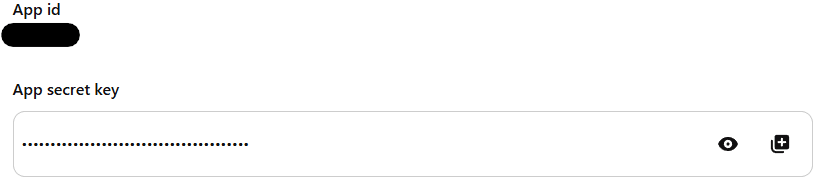
Copy the App ID and Secret
Copy the App ID at "App id" and the Secret Key at "App secret key"
Configure Redirect URI
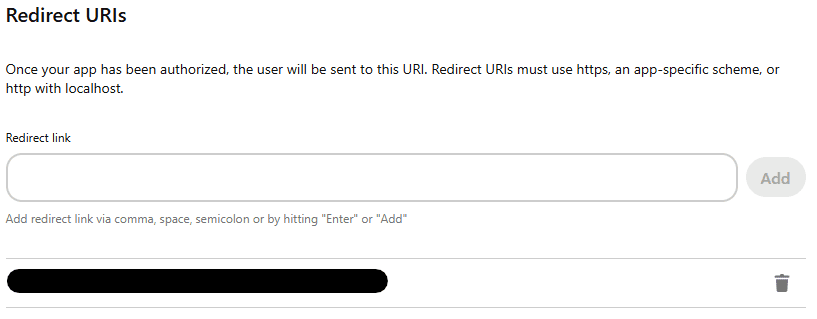
The OAuth2 Redirect URI is the location where the provider will redirect to after a successful login. This needs to be set to your Postiz FRONTEND_URL + /integrations/social/ + {provider}.
You only need to set one OAuth2 Redirect URI when you are setting up your Postiz app.
Your Pinterest OAuth2 Redirect URI:
- Production:
https://your-postiz-domain.com/integrations/social/pinterest - Local development:
http://localhost:4200/integrations/social/pinterest - Docker:
http://localhost:5000/integrations/social/pinterest
Add environment variables
PINTEREST_CLIENT_ID=""
PINTEREST_CLIENT_SECRET=""
You should now be able to add the Pinterest Provider to your User / Team Account.