Threads
How to add Threads to your system
These are your credentials with the platform, not Postiz credentials.
The keys on this page belong to a developer app you register with the platform. Nobody from Postiz will ever ask for them.
Keep them in your environment or a secret manager, never in a committed .env
file, and rotate them at the platform if they leak.
This integration requires that you have setup a Meta for Developers account already. You can start by going to the Meta/Facebook Developer Portal.
This is a complex integration, and it may take some time to get it right. If you have any issues, please reach out to us on the Postiz Discord.
Threads requires the THREADS_APP_ID and THREADS_APP_SECRET environment variables on the backend. If either is missing or unset when the backend starts, Threads will not appear in the channel list at all. You will think the provider is broken when really the env vars never got loaded. After adding them, restart Postiz and confirm Threads is offered in the Add Channel dialog before troubleshooting further.
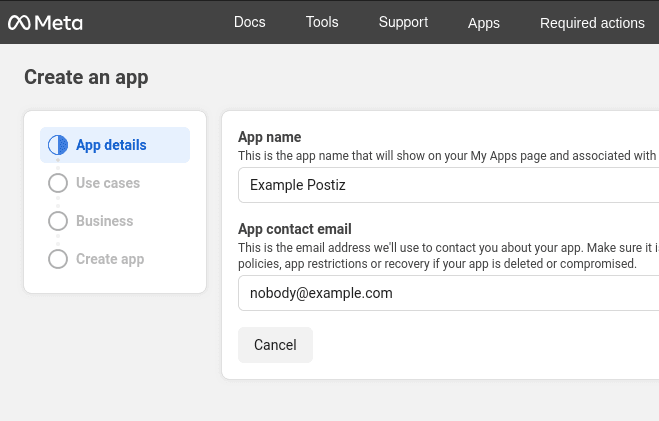
Request access to Threads
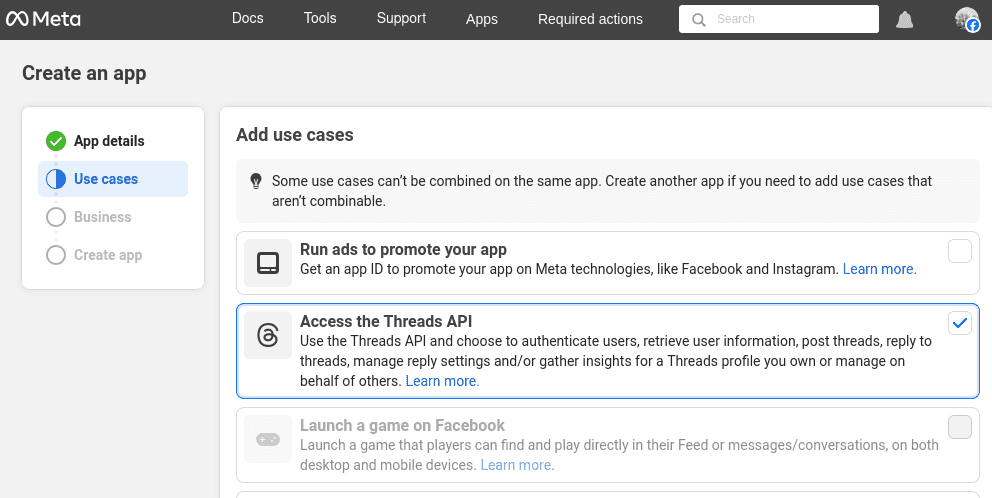
Select Access the Threads API.
Add business details, or skip
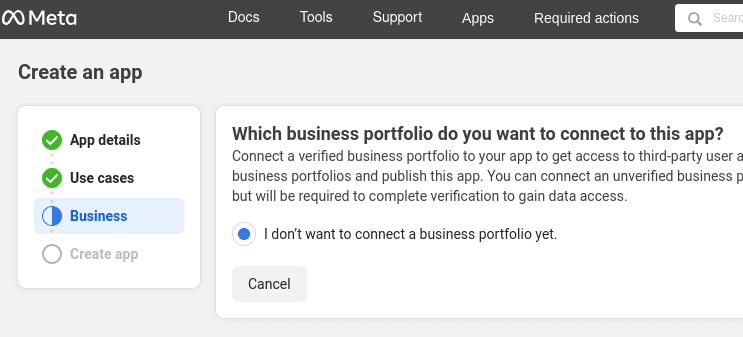
If you're unable to skip or move to the next step, and get a message saying "There are no business portfolios available to connect to this app", go to your Meta Business Suite Settings and make sure you've enabled Two-Factor Authentication (2FA) for your account.
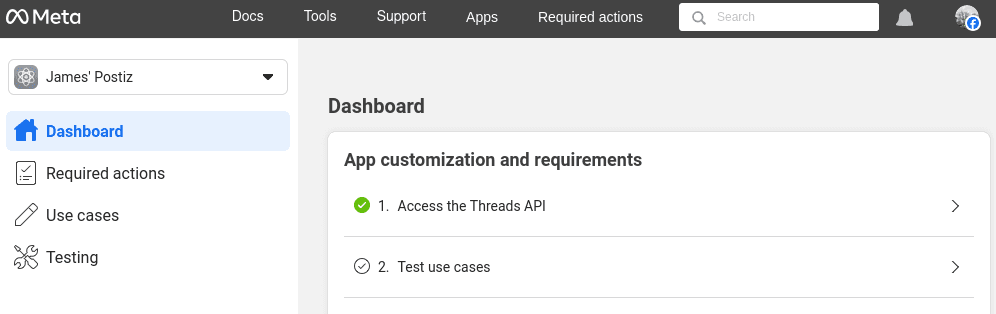
Finish creating the app
You should not have any extra requirements to publish and maintain access.
Configure API access
On the app dashboard, Select "Access the Threads API" to begin customizing the API access.
Add the "threads_content_publish" and "threads_basic" (automatically selected) to your app.
Set threads API settings
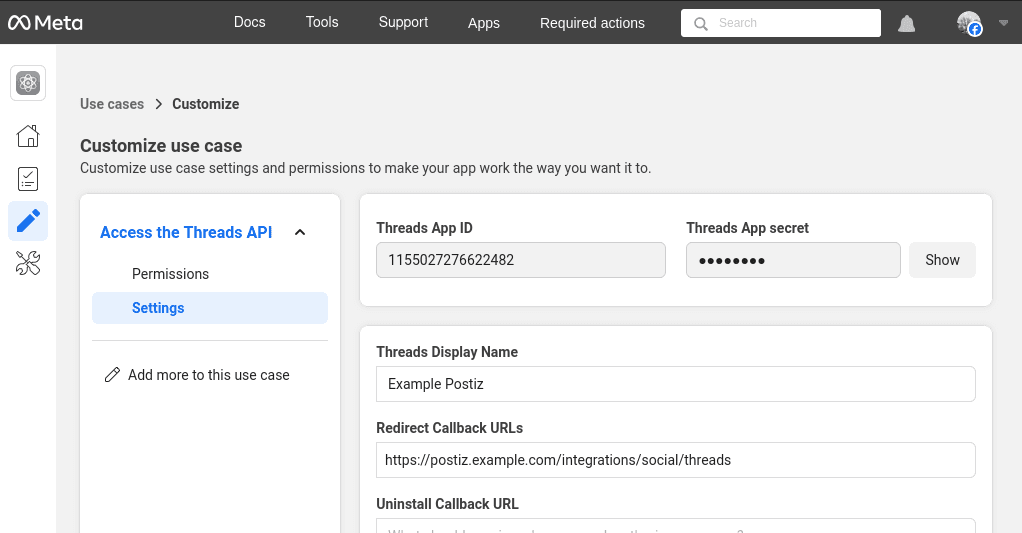
- Click the "Settings" tab. Copy your "Threads App ID", and set the Postiz environment variables
THREADS_APP_IDto this value. - Click the "Show" button next to the Threads App Secret, and set the Postiz environment variable
THREADS_APP_SECRETto this value. Note that the next box is quite small, make sure you scroll across the copy the full value. It should be 32 characters long.
The OAuth2 Redirect URI is the location where the provider will redirect to after a successful login. This needs to be set to your Postiz FRONTEND_URL + /integrations/social/ + {provider}.
You only need to set one OAuth2 Redirect URI when you are setting up your Postiz app.
Your Threads OAuth2 Redirect URI:
- Production:
https://your-postiz-domain.com/integrations/social/threads - Local development:
http://localhost:4200/integrations/social/threads - Docker:
http://localhost:5000/integrations/social/threads
You have to "click" the URL to make it active, otherwise the form will not save. You can use the same value for the Uninstall Callback URL and Delete Callback URL, but note that Postiz does not support either at this time. The form will not save unless you enter something.
Go back to the 'Dashboard' view of the Facebook developers portal and click "Finish customization". Make sure you clicked through the setup wizard, and select "Yes I'm finished" to complete the setup. The API may not work until you've done this.
Restart Postiz
Stop Postiz if it is running, and then start it again to pick up the new environment variables.
You should not try to add a Threads account to Postiz at this time.
Add the Threads account as a tester
- In the sidebar go to "App roles" -> "roles".
- Select the "Testers" tab. Click "Add People".
- Under Additional Roles for this App, select Threads Tester.
- Enter usernames of the threads users you want to test the app. Probably your own username. Note that this is probably different from your Meta developers account which is tied to Facebook.
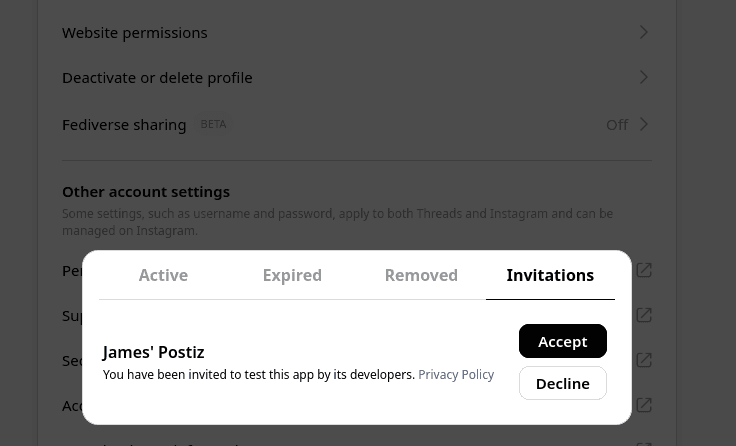
Allow the app on your threads account
- On threads.com, open your account settings;
- Open Website permissions, and switch to the "Invites" tab;
- If all has gone well, you should have a pending invite. Accept that invite.
Start testing
- Go back to the Meta developers portal, and in the sidebar, click Testing, and then open the Open Graph API Explorer.
- In the header, dropdown the API selector and change it to threads.net v1.
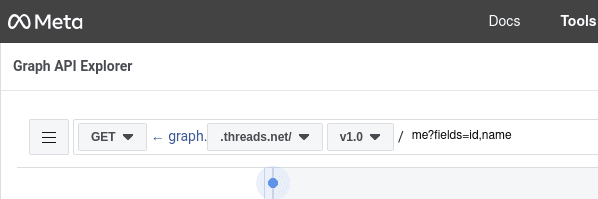
- In the right sidebar, under Access Token, click Generate Threads Access Token. This will open a new window where you can select the Threads account you want to test with - it should be an account that accepted the earlier invite. If everything has worked successfully you should be provided with a very long alphanumeric access token - you do not need to do anything with this, but it proves things are working correctly.
Good luck!
At this stage things should be working correctly, try a test post from Postiz to confirm.
This is a complex integration, and it may take some time to get it right. If you have any issues, please reach out to us on the Postiz Discord.