YouTube
How to Add YouTube to Your System
These are your credentials with the platform, not Postiz credentials.
The keys on this page belong to a developer app you register with the platform. Nobody from Postiz will ever ask for them.
Keep them in your environment or a secret manager, never in a committed .env
file, and rotate them at the platform if they leak.
Watch the YouTube Tutorial: https://youtu.be/b8fxx6DqIAw
Follow the instructions as available in the Obtaining authorization credentials.
General Setup
Go to Credentials Page
Make sure you are logged in to your Google account and visit the Credentials - APIs & Services page. Make sure to read the terms and conditions and "Agree and Continue".
Create Project
Create a new project by clicking on the "Create Project" button. Fill in the project name, and details and click "Create".
Create OAuth Credentials
Create credentials by clicking on the "Create Credentials" button. Select the "OAuth client ID" option.
Configure Consent Screen
Make sure that your consent screen has been configured.
Fill in OAuth Details
Create the OAuth client ID. Select "Web application" as the application type and fill in the details.
The OAuth2 Redirect URI is the location where the provider will redirect to after a successful login. This needs to be set to your Postiz FRONTEND_URL + /integrations/social/ + {provider}.
You only need to set one OAuth2 Redirect URI when you are setting up your Postiz app.
Your YouTube OAuth2 Redirect URI:
- Production:
https://your-postiz-domain.com/integrations/social/youtube - Local development:
http://localhost:4200/integrations/social/youtube - Docker:
http://localhost:5000/integrations/social/youtube
Under "Authorized redirect URIs", insert your OAuth2 Redirect URI.
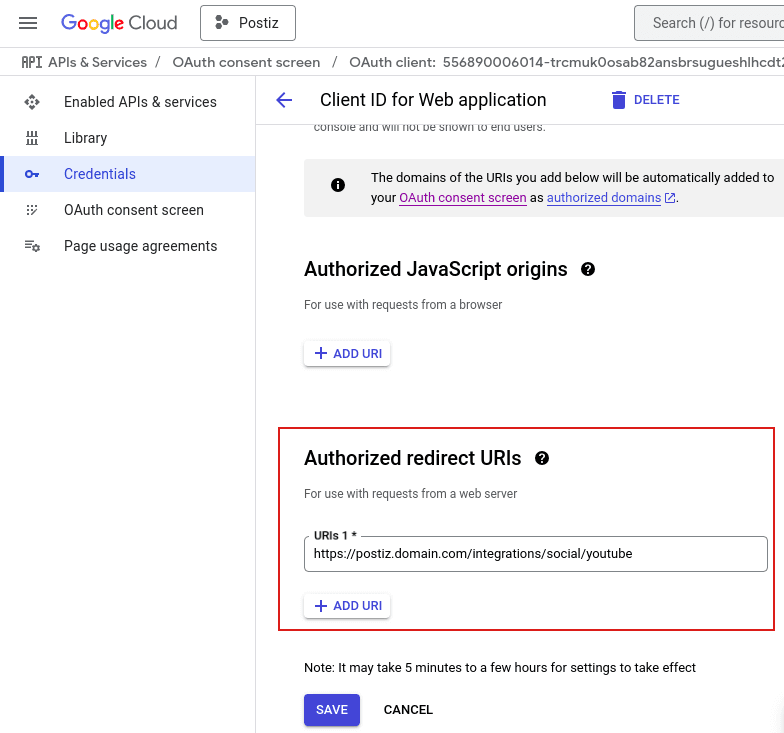
After following all of the steps above you should be met with a screen that shows your client ID and client secret. Add these to your providers configuration.
YOUTUBE_CLIENT_ID=""
YOUTUBE_CLIENT_SECRET=""
Add Test User
Add yourself as a test user of the application
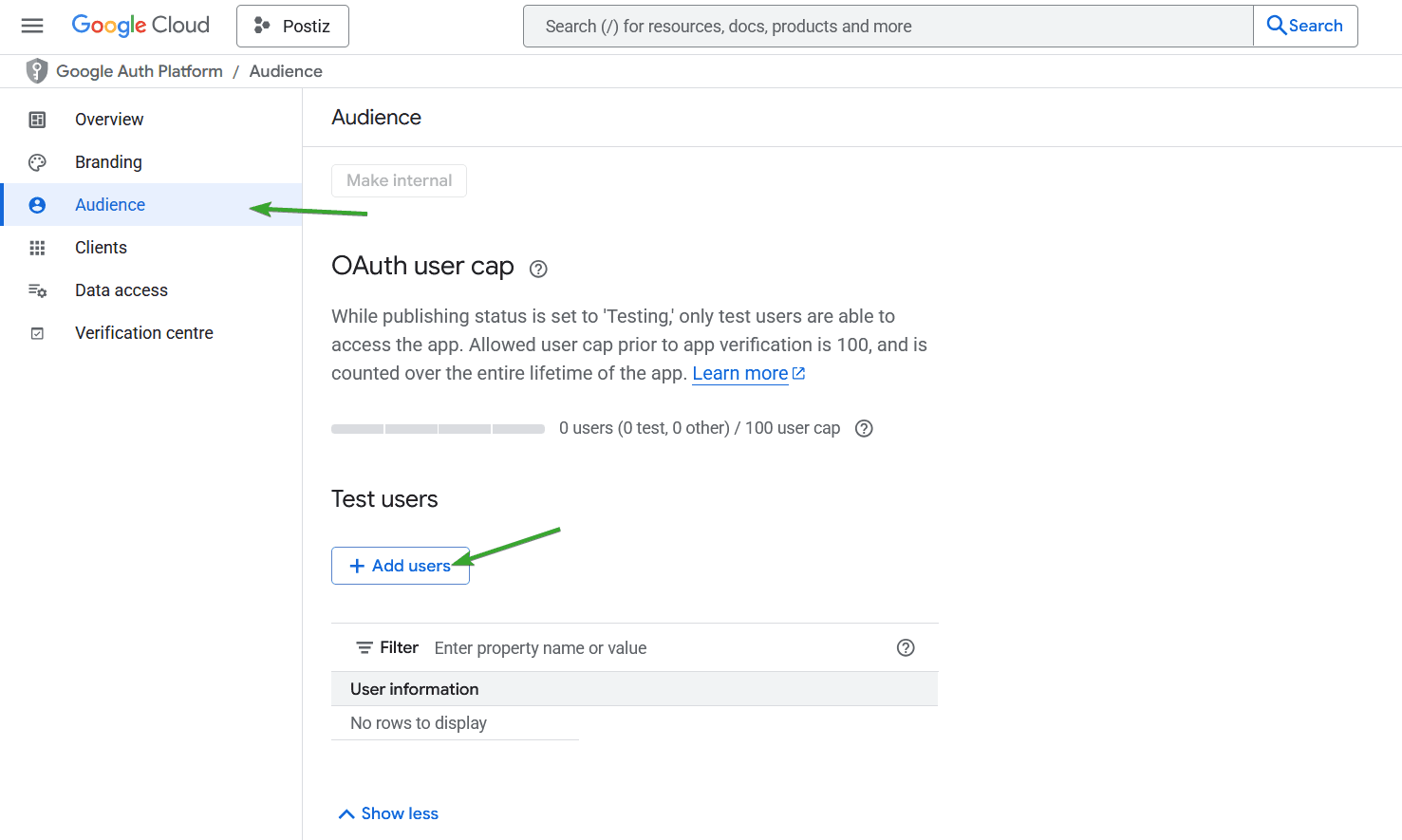
Activate YouTube's API
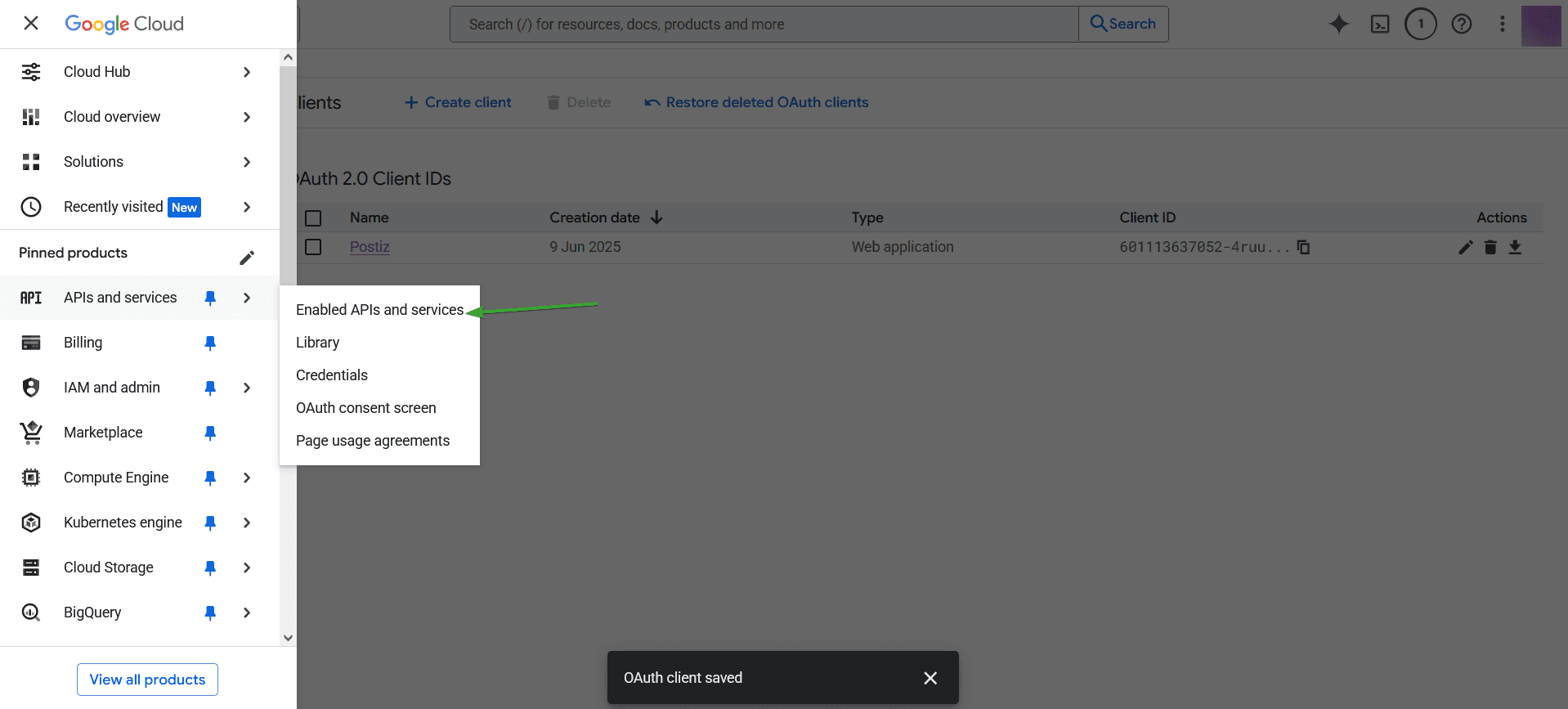
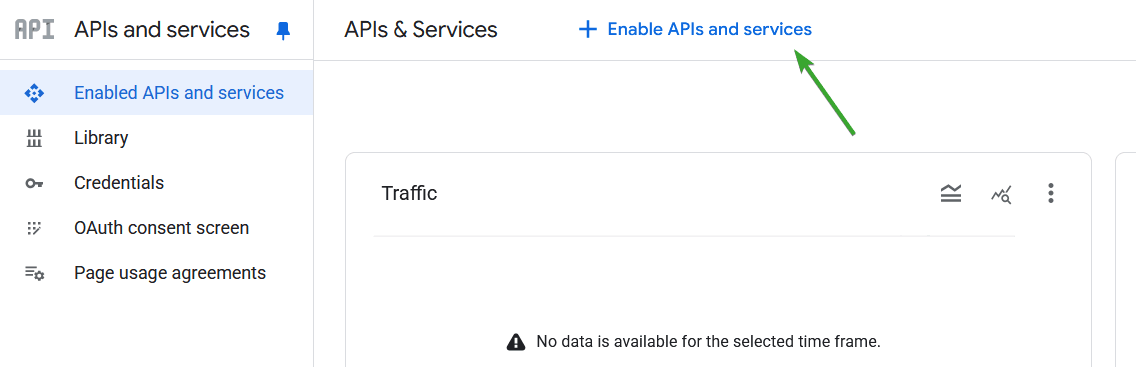
Go to "Enabled APIs and Services". Then click on "Enable APIs and Services". Search "YouTube Data API v3" and activate the API by selecting it and clicking "Enable". Do the same Process with "YouTube Analytics API" and "YouTube Reporting API".
Additional Steps for Brand Accounts
When using a Brand account you will need to set your APP to External and setup a test user. You do not need to publish the APP, but it does take time for the changes to propagate. You will also need to add the app to the trusted apps within your google workspace Admin.
Go to admin.google.com
Sign in
Go to Security Settings
Go to Security → Access and data Controls → API Controls Click Manage Third Party App Access
Configure new App
Click "Configure new App" Put your Client ID for the app you created in previous steps into the search box and select your app
Set scopes and Google Data Access
Set scopes and Google Data Access for the app to Trusted Once set, click save
Wait for propagation
Wait at least 5 hours for the changes to propagate. After this time you should now be able to add your YouTube channel to your Postiz account