X (Twitter)
How to add X to your system
These are your credentials with the platform, not Postiz credentials.
The keys on this page belong to a developer app you register with the platform. Nobody from Postiz will ever ask for them.
Keep them in your environment or a secret manager, never in a committed .env
file, and rotate them at the platform if they leak.
Watch the YouTube Tutorial: https://m.youtube.com/watch?si=swqzAXiSTFOXZiFo&v=3WneMPnOu88
X is a bit different.
They created an oAuth2 flow, but it works only with Twitter v2 API. But in order to upload pictures to X, you need to use the old Twitter v1 API. So you are going to use the normal oAuth1 flow for that (that supports Twitter v2 also 🤷🏻).
Create a new app
Head over the Twitter developers page and create a new app. Click to sign-up for a new free account

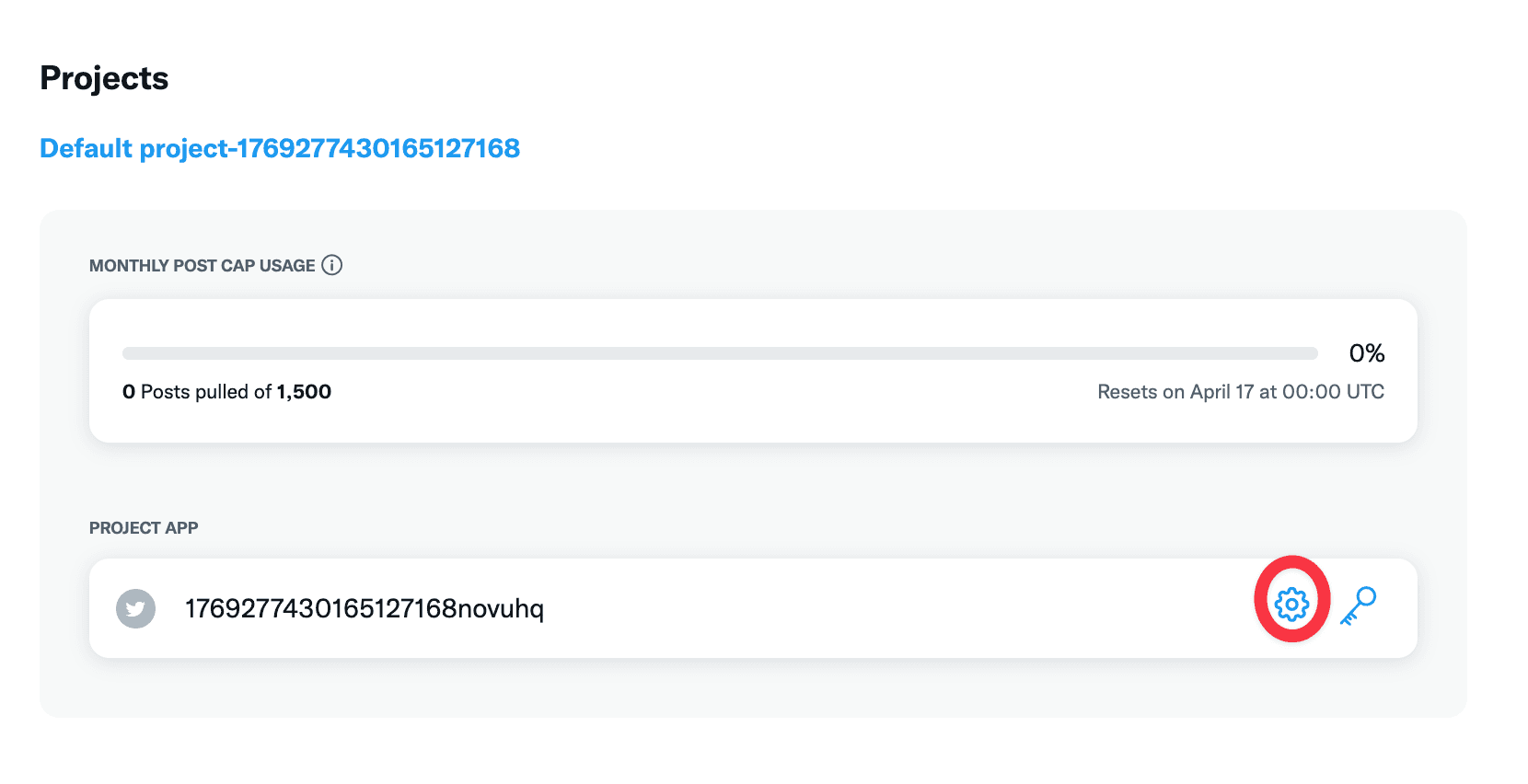
Edit application settings
Click to edit the application settings
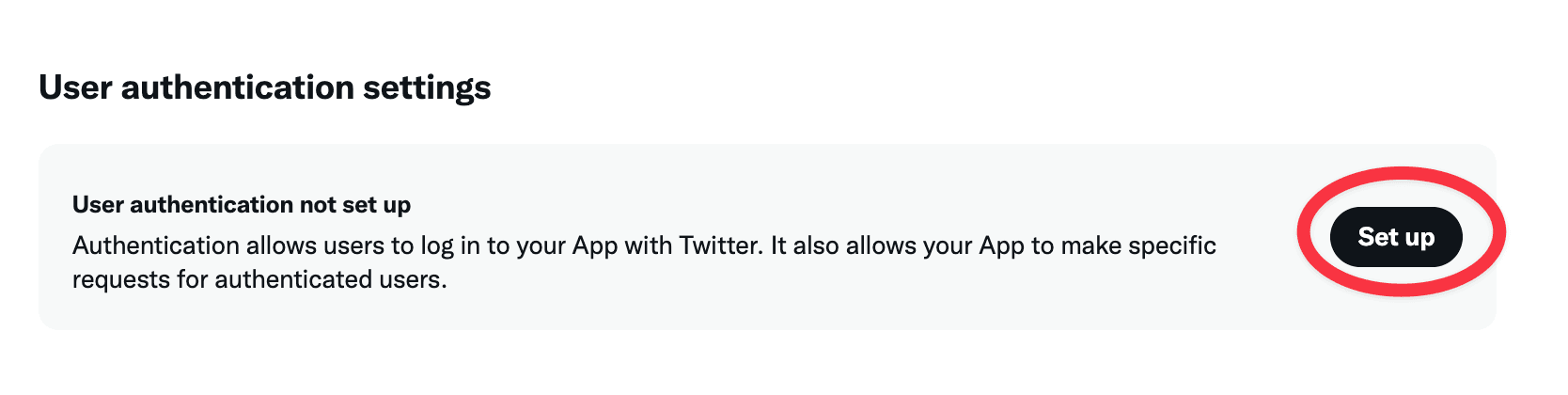
Set up authentication flow
Click to set up an authentication flow
- In the App Permission set it to
Read and Write - In the Type of App set it to
Native App - In the App Info set the
Callback URI / Redirect URL
You must select Native App for OAuth 1.0a to work correctly. Selecting Web App, Automated App or Bot will cause authentication to fail with error code 32.
Configure OAuth2 Redirect URI
The OAuth2 Redirect URI is the location where the provider will redirect to after a successful login. This needs to be set to your Postiz FRONTEND_URL + /integrations/social/ + {provider}.
You only need to set one OAuth2 Redirect URI when you are setting up your Postiz app.
Your X OAuth2 Redirect URI:
- Production:
https://your-postiz-domain.com/integrations/social/x - Local development:
http://localhost:4200/integrations/social/x - Docker:
http://localhost:5000/integrations/social/x - If X requires HTTPS for localhost:
https://redirectmeto.com/http://localhost:4200/integrations/social/x
Copy your API keys
Save it and go to "Keys and Tokens" tab.
Click on "Regenerate" inside "Consumer Keys" and copy the API Key and API Key Secret.
Open .env file and add the following:
X_API_KEY=""
X_API_SECRET=""
Optional environment variables
X_URL: override the X API base URL (e.g. for self-hosted X-compatible APIs).DISABLE_X_ANALYTICS=true: skip the analytics fetch on the X channel page. Useful if your X plan doesn't include analytics access and the failed call is noisy.STRIP_LINKS_FROM_X_POSTS=true: automatically remove URLs from post text before publishing. Some accounts see better reach with no links; this enforces it globally.
Post Settings
When creating a post for X, you can configure the following options:
- Who can reply: Control who can reply to your post: everyone, accounts you follow, mentioned accounts, subscribers, or verified accounts.
- Post to a community: Optionally share your post to an X community by providing the community URL.
- Made with AI: Mark your post as containing AI-generated content. When enabled, the post will be labeled accordingly on X.
- Paid partnership: Mark your post as a paid promotion. When enabled, the post will be labeled as a paid partnership on X.